
How to tell if someone tried a wrong password on your Mac
Think someone tried to guess your password while you were away? macOS doesn't show you a list of wrong attempts, but it writes them to the system log. Here's how to find them, how to check that the method works on your Mac and how to get an alert next time.
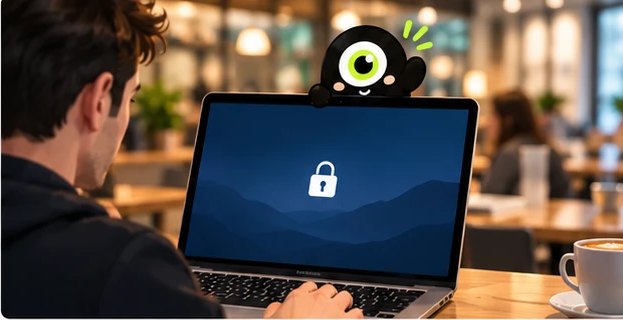
What macOS shows you, and what it doesn't
The lock screen shows no message like “3 wrong attempts while you were away”. When you come back and unlock, the Mac looks exactly as before. The traces remain only in the system log, which you read from Terminal.
Step 1: run a 30-second test
Log messages differ a little from one macOS version to another. So before you look for someone else's attempts, see what one of yours looks like:
- Lock the screen with Control + Command + Q.
- Type a wrong password on purpose, then unlock with the right one.
- Open Terminal (Command + Space, type Terminal, press Return), paste the command below, then press Return.
/usr/bin/log show --last 5m --style syslog --predicate 'process == "opendirectoryd" AND eventMessage CONTAINS[c] "authenticat"' | grep -i failYou should see at least one line with the time you typed the wrong password. One wrong password usually leaves two or three lines with the same time. Remember what that line looks like, so you can recognise it later.
If nothing shows up, try a wider search and look at the lines around the time of the test:
/usr/bin/log show --last 5m --style syslog --predicate 'process == "loginwindow"'Step 2: look for attempts from the time you were away
Replace “5m” with the period you care about: 3h means the last three hours, and 1d the last 24 hours.
/usr/bin/log show --last 1d --style syslog --predicate 'process == "opendirectoryd" AND eventMessage CONTAINS[c] "authenticat"' | grep -i failThe command can take a minute. Each line it finds starts with the date and time. If you see lines from the time you weren't at the laptop, someone tried a wrong password.
The user name may appear as <private>, because macOS doesn't display some details in the log. The time is still visible, though. Wrong passwords typed in other windows also show up, for example when macOS asks for your password to install something. That's why you should look only at the lines from the time you were away.
The log is kept for only a few days, so check soon.
What about the Console app?
If you prefer a window to Terminal, open Console from Applications, in the Utilities folder. Choose your Mac on the left and click Start. Console only shows what happens after you start it, though, not what happened yesterday. For checking the past, Terminal is still the tool.
Settings that protect your password and your Mac
- Turn off the password hint: in System Settings, under Lock Screen, turn off “Show password hints”. Otherwise, after a few wrong attempts, macOS shows the hint to anyone at the keyboard.
- In the same place, set the Mac to ask for the password immediately after the display turns off.
- Use a long password, not a birthday or your child's name. With Touch ID you won't have to type it often.
- Turn on FileVault (in Privacy & Security), so the disk is encrypted. Also turn on Find My, so you can lock or erase the Mac remotely.
How to get an alert for a wrong password: Upsi
The log gives you only the time, and macOS doesn't take a photo when a wrong password is typed. Upsi is a menu bar app for macOS 14 or later that takes a photo with the Mac's camera when someone types a wrong password on the lock screen. It also takes a photo when someone wakes the locked Mac, that is, opens the lid or presses a key.
The photos stay on your Mac. If you want them on your phone, Upsi sends them to your own Telegram bot, with the time. The Mac's approximate location appears only if you turned location on. Nothing passes through our servers.
Try Upsi free for 30 days
Every feature is included in the trial, no card needed. After that it costs €4.99 a year for one Mac. For now payment is in crypto; card payment is coming back soon. Works on macOS 14 or later.
Download Upsi for MacWhat else Upsi doesFrequently asked questions
Does the Mac lock after too many wrong passwords?
On a personal Mac, System Settings has no simple option that locks the account after a certain number of attempts. Company computers may have such a rule, set by the administrator.
Does Upsi take a photo of me too when I type the wrong password?
Yes. Upsi doesn't know who is typing, so it takes a photo at any wrong password. Photos are deleted from the Mac automatically after the number of days you choose in the settings, 30 by default.
What happens if the Mac is restarted and someone tries passwords at startup?
Upsi starts only after you log in, so it doesn't see the login screen after a restart. The restart does show up in the last command in Terminal, though.
Can you tell that Upsi is on?
Yes. The camera light comes on with every photo, and the Upsi eye always sits in the menu bar. Upsi has no option to hide it. At the first unlock after installing, and then at most once every 7 days, the notice “Upsi runs on this Mac” appears, and this notice can't be turned off.