
How to tell if someone used your laptop while you were away
You come back to your desk and the laptop isn't where you left it. Maybe it's just an impression, maybe not. On a Mac you can check for yourself, for free, whether the screen was turned on and when. Below are the methods that work on macOS 14, 15 and 26, and how to get an alert next time.
What you can find out without installing anything
macOS keeps a few logs that show when the computer woke up, when the screen turned on and when someone logged in to an account. No log shows you who it was, but all of them tell you whether something happened while you were away. Note the time you left and the time you came back, then look for events in between.
1. The battery chart (MacBook only)
- Open the Apple menu (the apple in the top-left corner) and choose System Settings.
- Click Battery in the left column.
- Choose the 24-hour range and look at the lower chart, the one that shows how long the screen was on.
If you see bars during the time you weren't at the laptop, the screen was on then. The chart doesn't say why, so also check the log below.
2. The wake log, in Terminal
Terminal is in Applications, in the Utilities folder. You can also open it from Spotlight: press Command + Space and type Terminal. Paste the command below and press Return:
pmset -g log | grep -E "Wake from|Display is turned on"Each line starts with the date and time. Lines with “Display is turned on” show the moments the screen turned on. Lines that start with “DarkWake” are short wakes the Mac does on its own, for example to check email. You can ignore them.
If a line appears right in the time you were away, someone probably opened the lid or pressed a key.
3. Who logged in: the last command
last | head -20The command shows the latest logins, restarts (reboot) and shutdowns (shutdown). Most of the time, an ordinary screen unlock doesn't appear here. That's why the last command helps mostly when someone restarted the Mac or logged in to another account.
4. What was opened
- In the Apple menu, Recent Items shows the last apps and documents that were opened.
- In the Finder, Recents shows recently opened files, newest first.
- In Safari and Chrome, Command + Y opens the history. If you see pages you didn't open, the Mac was used while you were away.
- If you turned on Screen Time beforehand, you'll find it in System Settings. It shows which apps were used and at what time.
What these traces don't tell you
All the methods above tell you when something happened, not who it was. If the laptop sits in an office or in a home with several people, the time alone rarely settles it. Also, the logs are kept for only a few days, and Screen Time has to be turned on beforehand.
How to get an alert next time: Upsi
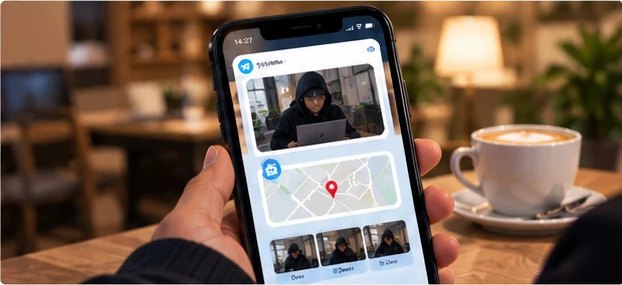
Upsi is a menu bar app for macOS 14 or later that protects your own Mac. When someone wakes the locked Mac (opens the lid or presses a key) or types a wrong password on the lock screen, Upsi takes a photo with the Mac's camera.
The photos stay on the Mac. If you want, they also reach your phone, in your own Telegram bot, with the time. The Mac's approximate location appears only if you turned location on. Nothing passes through our servers.
So you know what to expect: the camera light comes on with every photo. After a full restart, Upsi starts only after you log in, so it doesn't see the login screen. For that case, there's still the last command above.
Try Upsi free for 30 days
Every feature is included in the trial, no card needed. After that it costs €4.99 a year for one Mac. For now payment is in crypto; card payment is coming back soon. Works on macOS 14 or later.
Download Upsi for MacWhat else Upsi doesHow to protect yourself next time
- Lock the screen every time you get up from your desk: Control + Command + Q.
- In System Settings, under Lock Screen, set the Mac to ask for the password immediately after the display turns off.
- Under Desktop & Dock, the Hot Corners button lets you lock the screen by moving the pointer into a corner.
- Turn on FileVault in Privacy & Security, so the disk is encrypted if the laptop is stolen.
- Use a password nobody around you can guess, not your birthday.
Frequently asked questions
Does macOS show me who unlocked the Mac with the right password?
No. From macOS you only get the time, from the battery chart and the wake log. Upsi takes the photo the moment the locked screen wakes, before the password, so it photographs anyone at the keyboard, including you.
How long are the logs kept?
Usually a few days, and on a heavily used Mac even less. Check as soon as you suspect something, not a month later.
Does the battery chart also appear on an iMac or Mac mini?
No, only on a MacBook. On a desktop Mac, use the wake log in Terminal.
Which computer may I use Upsi on?
Only on a Mac that belongs to you. The terms forbid using Upsi to monitor another person. Rules about photos differ from country to country, so if other people also use your Mac, tell them beforehand that Upsi is on.